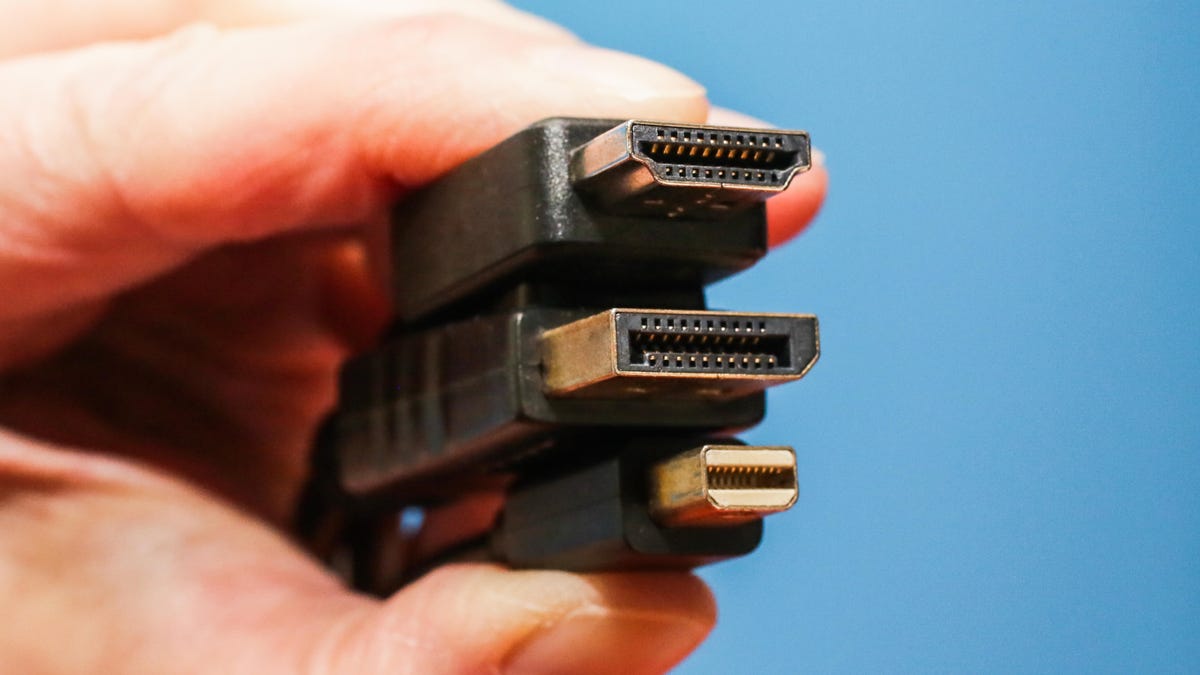
If your monitor had a backstage area, HDMI and DisplayPort would be standing there like two actors fighting over who gets the lead role.
HDMI: “I’m the people’s favorite. Everyone knows me. Everyone uses me.”
DisplayPort, polishing its connector: “Popularity doesn’t equal power, darling.”
Welcome to the fight that no one asked for, but your GPU quietly witnesses every day.
Let’s open the curtain and see what’s really going on.
The Awkward Unboxing Moment
The moment you unbox a new monitor, there’s always this awkward moment where you stare at the ports thinking:
“Which one of you gives me the best picture?
And which one of you is just pretending to be useful?”
HDMI perks up like a dog hearing the word “walk”:
“Me! Pick me! I'm in TVs, consoles, set-top boxes, laptops… I am EVERYWHERE.”
DisplayPort folds its arms, tilts its imaginary sunglasses, and whispers:
“I’m not everywhere… just everywhere that matters.”
In simpler terms:
-
HDMI = the friendly neighborhood cable. Works everywhere, social, adaptable.
-
DisplayPort = the performance-focused professional. Less social, but faster and more capable.
It’s like choosing between:
-
A reliable family car
-
A turbocharged sports car
One gets you to your destination. The other gets you there fast, smooth, and with style.
The GPU’s Perspective
Inside your PC, the conversation is even funnier. Imagine your GPU orchestrating traffic to the monitor:
GPU: “Alright team, let’s send 165Hz to this monitor.”
HDMI (older versions, sweating): “Wait wait wait… I can do 60… maybe 120… don’t push me, man!”
DisplayPort (stretching like an athlete): “Give me 165Hz, 240Hz… 360Hz… I’ll carry it.”
HDMI looks offended:
“Hey! HDMI 2.1 can go high too!”
DisplayPort smirks:
“Yes… but how many of you are actually HDMI 2.1 cables?”
HDMI suddenly looks nervous, avoiding eye contact.
And then there’s the locking mechanism:
-
DisplayPort proudly clicks into place like a seatbelt.
-
HDMI… gently slides in like it’s afraid of commitment.
Monitor, tired of this drama:
“Every time someone moves this table, HDMI falls out! Can you hold on properly?”
HDMI, offended:
“I am trying! I am smooth by design!”
DisplayPort rolls its eyes:
“And I am stable by design.”
Real-Life Scenarios for Gamers and Professionals
1. High Refresh Rate Gaming
Gamer: “I want 144Hz.”
HDMI (looking unsure): “Depends on which version of me you’re using…”
DisplayPort (raising hand): “I got you.”
Gamer: “I want VRR (Variable Refresh Rate).”
HDMI squints: “Uhh… maybe?”
DisplayPort: “Yep, built in.”
Gamer: “I want daisy chaining for multiple monitors.”
HDMI: “What’s that?”
DisplayPort, sipping tea: “Never mind. I’ll do it.”
Your PC pats DisplayPort on the back:
“Good job, champ.”
2. Casual Media and TV Use
Although DisplayPort is king for high refresh rates, HDMI rules your living room:
-
Smart TVs
-
PlayStations
-
Xbox
-
Fire Stick
-
Home theatres
DisplayPort walks into a TV store and realizes:
“Oh… nobody here knows me.”
Truth: HDMI = social butterfly, DisplayPort = professional athlete. Both useful, both important, just built differently.
Technical Breakdown: HDMI vs DisplayPort
| Feature | HDMI | DisplayPort |
|---|---|---|
| Max Resolution (2025) | 8K @ 60Hz (HDMI 2.1) | 8K @ 60Hz, 4K @ 240Hz+ |
| Audio Support | Yes, standard | Yes, supports more channels |
| VRR / FreeSync / G-Sync | Limited (HDMI 2.1 only) | Fully supported |
| Daisy Chaining | No | Yes |
| Maximum Bandwidth | 48 Gbps (HDMI 2.1) | 77.4 Gbps (DP 2.0) |
| Use Case | TVs, Consoles, Streaming | High-end Gaming, Workstations |
Takeaway: HDMI = compatibility, DisplayPort = performance.
Why Cables Matter
Even the best monitor or GPU is limited by the cable connecting them. Bad cables can cause:
-
Flickering
-
Black screens
-
Limited refresh rates
-
Signal degradation at high resolutions
So choosing the right cable is crucial.
“You wouldn’t put a sports car on a dirt track and expect a Formula 1 lap, right?”
Recommended Cables (Tested & Reliable)
If you’re planning to upgrade your setup, these cables won’t fail you mid-game or during work:
✔ Best High-Speed HDMI Cable (4K Supported)
Perfect for: TVs, consoles, 60Hz–120Hz monitors
Buy here: https://amzn.to/4rnIPcG
✔ Best DisplayPort Cable for High Refresh Rates
Perfect for: Gaming monitors, high-refresh PC displays (144Hz / 165Hz / 240Hz)
Buy here: https://amzn.to/48rt1Nw
Reliable, affordable, and hassle-free. No flickers, no warnings, no black screen panic.
HDMI’s Redemption Arc
While DisplayPort shines in high-end gaming setups, HDMI has its moments of glory:
-
Movies & Streaming: Most streaming devices use HDMI.
-
Consoles: PlayStation 5, Xbox Series X — all HDMI.
-
Living Room Simplicity: One cable for both video and audio.
HDMI is the everyday hero, while DisplayPort is the high-performance specialist.
Funny Backstage Dialogues
Imagine HDMI and DisplayPort backstage:
HDMI: “I might not lift 240Hz, but everyone loves me.”
DisplayPort: “I lift 240Hz and carry VRR, daisy chaining, and HDR without breaking a sweat.”
HDMI: “Fine… I admit, you’re faster. But I’m smoother.”
DisplayPort: “And I’m more reliable.”
Monitor, sighing:
“Just work together, please. My pixels can’t take the drama.”
Choosing the Right Cable for Your Setup
-
If you’re gaming on PC with high refresh rate monitor: DisplayPort is usually the better choice.
-
If you’re connecting to a TV or console: HDMI is more compatible and convenient.
-
If you want VRR (G-Sync/FreeSync): Check if HDMI version supports it; DisplayPort is safer.
-
For daisy chaining multiple monitors: DisplayPort only.
“Remember, the cable you pick can make or break your smooth gaming session.”
Extra Tips for Cables
-
Length Matters: Keep cables under 2 meters for best signal quality, especially at high resolutions.
-
Certified Cables: Always use certified high-speed HDMI or DP 1.4/2.0 cables for reliability.
-
Avoid Cheap Clones: Poorly made cables can cause flickers and instability.
-
Cable Management: Don’t kink, twist, or overly bend. Your ports will thank you.
“Your PC doesn’t care about aesthetics, but your sanity does.”
Conclusion
At the end of the day, HDMI and DisplayPort are both vital tools for your PC setup:
-
HDMI = compatibility, comfort, simplicity
-
DisplayPort = performance, speed, future-proofing
When upgrading your monitor or GPU, choose the cable based on:
-
Your usage (gaming vs streaming)
-
Monitor refresh rate
-
Resolution requirements
And remember: your PC just wants a smooth connection. Nothing else.
“Plug in the right cable, sit back, and let your pixels shine.”
Recommended reliable cables:
-
High-Speed HDMI: https://amzn.to/4rnIPcG
-
High-Refresh DisplayPort: https://amzn.to/48rt1Nw
So the next time your GPU silently judges HDMI and DisplayPort backstage, know that both cables have their moments to shine — you just need to pick the right actor for the role.
“And that, my friend, is how your monitor got the performance it deserved.”

0 Comments